Need to setup a new Bulk Pricing promotion? Submitting a request is a simple procedure. Here's a step by step guide:
Step 1: Download the Bulk Pricing Submission Form here and save it to your computer.
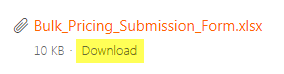
(Note: Requests submitted without a Bulk Pricing Submission Form will be rejected until a form is submitted.)
Step 2: Open the Bulk Pricing Submission Form in Microsoft Excel. There are seven (7) columns in the spreadsheet:
- [A] Article #'s
- [B] Start Date
- [C] End Date
- [D] Marketing Message (ENG)
- [E] Marketing Message (FR)
- [F] External URL (ENG)
- [G] External URL (FR)
Column [A]

This is where you enter your article #'s for your Bulk Pricing promotion.
Column [B]

This is where you specify the start date for your Bulk Pricing promotion.
Column [C]

This is where you specify the date to end your Bulk Pricing promotion.
Column [D]

Please give us a description of your promotion.
(Ex: 5-20% OFF Select In-Stock products: concrete, drywall, steel studs, shingles, insulation, tile set materials, lighting, electrical, pipe, and moulding. In-store only at participating locations. See an associate for details. Discount off current ticketed price. Not valid in combination with any other offer. See full details here.)
Column [E]

Please give us the French translation for your Marketing Message from column (D).
Column [F]

Please provide us a URL to our Bulk Pricing detail page. We do not create or provide this URL.
Column [G]

Please provide us a French URL to our Bulk Pricing detail page. We do not create or provide this URL.
Step 3: Sign into your account on the HomeDepot.ca Digital Promotions Portal and click the "Submit a request" button in the top-right corner of the site.

Step 4: Under "How can we assist you today?", select "Promotions" from the drop-down menu.

Step 5: Under "Promotion Type", select "Bulk Pricing" from the drop-down menu.

Step 6: Fill out the remaining required (*) fields on the request form and attach your Bulk Pricing Submission Form to the Attachments bar at the bottom. If you attach the wrong file, simply click the "x" to the right of that file's name to remove if from your request and re-attach the correct file.
(Note: The Attachments bar has a 20MB size limit.)

Step 7: Once the request form has been filled out, click "Submit" and your request will enter the queue. You will be sent a confirmation email that your request has been received with a ticket number, which you can use to track the status of your request.

Comments
0 comments
Please sign in to leave a comment.